Guide · Restream
How to add a stream delay to Restream, TikTok included
Restream takes one stream and sends it to many platforms. Put a delay in front of it, and every one of those platforms gets the delay.
Updated
How it fits together
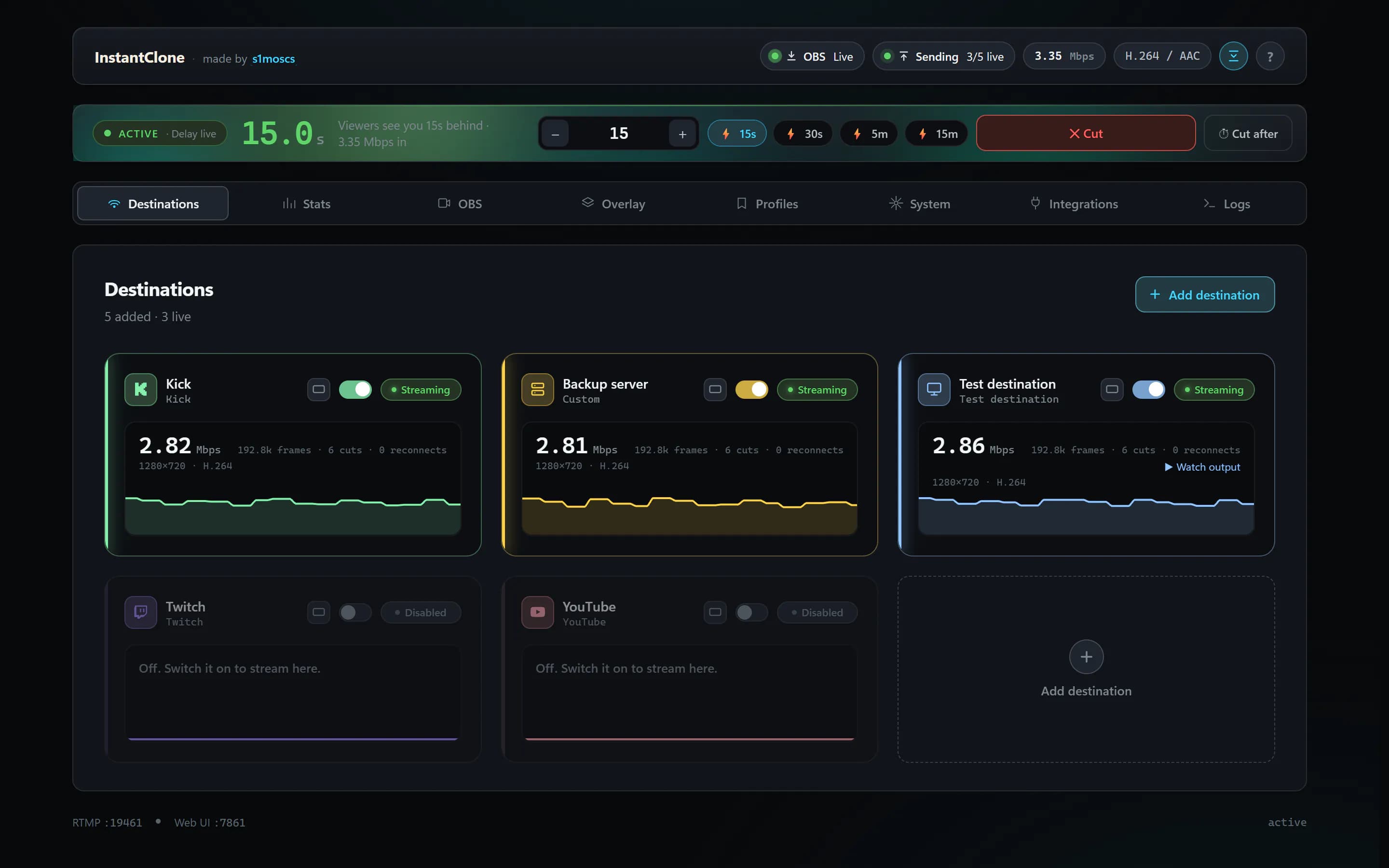
OBS sends your stream to InstantClone, a free, open-source app on your PC. InstantClone holds it for as long as you choose and passes it on to Restream, which sends it to your channels. Nothing changes on Restream's side: it gets a normal stream, just one that is behind by your delay.
Set it up
- Set up InstantClone with OBS. The setup guide takes a few minutes, and your OBS settings stay as they are.
- Copy your Restream stream key. In Restream, it is under Channel Settings, then Stream Key.
- Add Restream to InstantClone. In the dashboard, press Add destination, pick Restream.io and paste the key. The server address is filled in for you.
- Go live from OBS as usual. When you want the delay, arm it, then activate it. You can raise it, lower it or cut back to live at any time.
Not sure how long to make it? How much stream delay should you use? has a starting number for each kind of stream.
TikTok through Restream
TikTok wants a vertical picture, so it needs a little more. In the Restream destination, set Stream format to Vertical 9:16. The vertical picture comes from OBS:
- With a Twitch destination: Twitch decides the tracks, so the channel needs Twitch Dual Format on.
- Without one: set up a 9:16 canvas once in OBS, under Settings, Stream, Enhanced Broadcasting, then Additional canvas (for example Aitum Vertical).
Restream sends the same picture to every channel on it. So keep that Restream for vertical platforms, and add Twitch, YouTube or Kick straight to InstantClone in 16:9. Each one still gets the same delay.
What TikTok asks for
From Restream's own TikTok help page, as of November 2026:
- Since 7 July 2025, TikTok asks creators who stream through Restream to keep at least 50% of their streams gaming content.
- If Restream shows Streaming not allowed, your account doesn't qualify yet. You can apply from there, and try again 14 days after a refusal.
- Meeting the requirements to go live from the TikTok app does not mean you can stream through Restream.
- If you have a TikTok stream key, Restream also takes it as a Custom RTMP channel.
These rules are TikTok's and they change, so check Restream's TikTok help page before you plan around them.
Frequently asked questions
Does the delay reach every platform on my Restream?
Yes. Restream relays the one stream it receives, and with InstantClone in front of it, that stream is already delayed. Every channel on that Restream gets the same delay.
Can I change the delay while I'm live on Restream?
Yes. You change it in InstantClone, and the connection to Restream stays up: no reconnect, no restart. Viewers see one jump back when the delay goes up and one jump forward when it comes down.
Can I stream vertical to TikTok and landscape to YouTube at the same time?
Yes, as two InstantClone destinations: a Restream one set to Vertical 9:16 for TikTok, and YouTube added straight to InstantClone in 16:9. Keep landscape platforms off that Restream, because it sends the same vertical picture to every channel on it.
Why does Restream say "Streaming not allowed" for TikTok?
Your TikTok account doesn't meet TikTok's rules for streaming through Restream yet. Restream's help page explains how to apply, and it is TikTok's decision, not InstantClone's or Restream's.